How to Watch IPTV on Samsung & LG Smart TVs in Ireland (Easy 2026 Guide)
Get your IPTV subscription running directly on a Samsung or LG Smart TV, with no extra box and no complicated settings. We will even link it for you.
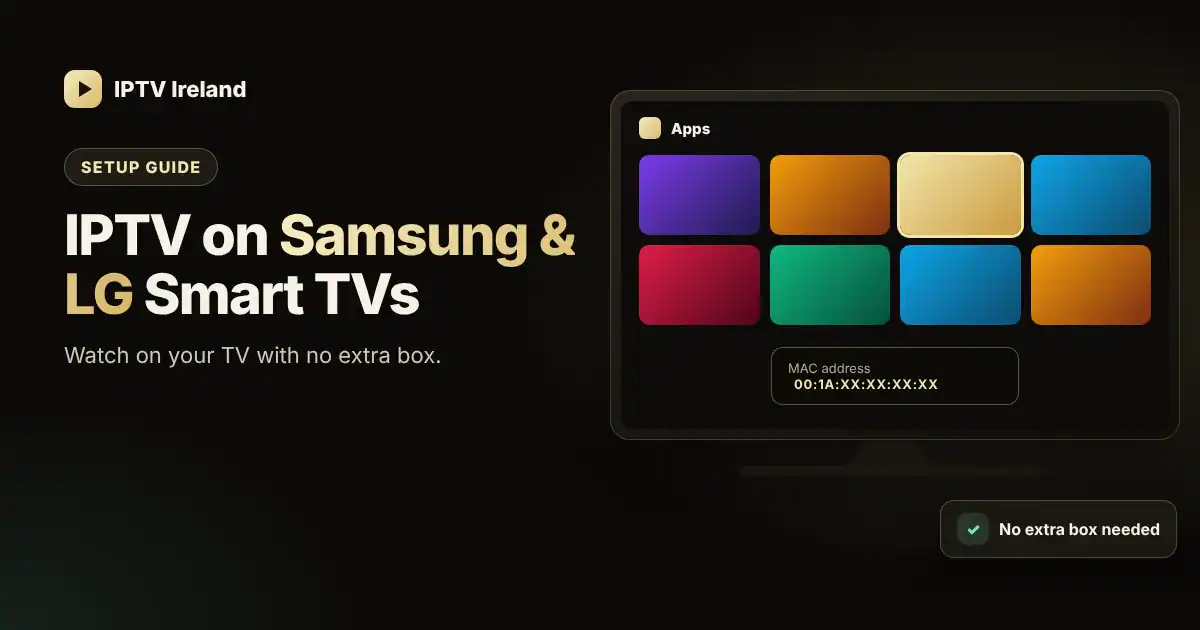
Want IPTV on your Smart TV without another box or remote on the coffee table? Good news: most Samsung and LG TVs sold in Ireland in recent years can run an IPTV player app directly. This guide shows you exactly how.
What You Will Need
- A Samsung (Tizen) or LG (webOS) Smart TV, ideally from 2018 or newer.
- Your TV connected to the internet, by Ethernet cable if possible.
- An active IPTV subscription. See our plans.
- Your phone, to send us your TV app details on WhatsApp.
Which IPTV App Should You Use on a Smart TV?
Smart TVs cannot install apps from outside their official stores, so you will use an IPTV player from the Samsung or LG app store. Popular options include IBO Player and similar playlist players.
App availability changes by TV model and region, and some Smart TV apps charge a small one-off activation fee to the app developer after a free trial. Tell us your TV model and we will recommend the best option for you.
How to Install an IPTV App on a Samsung TV
- Press the Home button on your remote and go to Apps.
- Select the Search (magnifying glass) icon and type the name of the app.
- Select the app, then choose Install.
- Open the app. You will see a MAC address and a device key on screen. Keep this screen open for the next step.
How to Install an IPTV App on an LG TV
- Press the Home button and open the Apps store (called LG Content Store on older models).
- Use Search to find the app.
- Select Install, then Launch.
- Make a note of the MAC address and device key shown in the app.
Add Your IPTV Subscription to the App
Most Smart TV players link your subscription using the TV's MAC address, so you do not have to type long server addresses with the remote. There are two ways to do it:
Option A: Let us do it for you (easiest)
- Take a clear photo of the app screen showing the MAC address and device key.
- Send the photo to our support team on WhatsApp.
- We add your subscription to the app. Restart the app and your channels, films and series will load.
Option B: Add it yourself
- On your phone or computer, open the app developer's official website and find the playlist upload page.
- Enter your TV's MAC address and device key.
- Add your playlist using the Xtream Codes details (server URL, username, password) or the M3U link we sent you, then save.
- Restart the app on your TV.
Older TV? Use a Firestick Instead
If your TV is older, the app is not available or you would like the best possible experience, plug in an Amazon Firestick. It costs less than a month of most traditional TV packages and runs premium players such as TiviMate. Follow our Firestick IPTV setup guide.
Tips for the Best Picture on a Smart TV
- Use the Ethernet port on the back of your TV for a more stable connection than Wi-Fi.
- Update your TV software in the settings menu so apps run smoothly.
- Pick the right picture mode. Try Standard or Sport, and adjust motion settings to taste for fast-moving action.
- Turn the TV fully off and on occasionally to clear its memory.
Troubleshooting
The app asks for activation
Some Smart TV apps require a one-off activation fee after the free trial. This is paid to the app developer, not to us. Ask us if you would like a recommendation.
The playlist will not load
Double-check the MAC address (every character matters), then restart the app. If it still does not load, send us a photo of the screen.
Picture but no sound
Try another audio track in the player, or set your TV's digital audio output to PCM in the sound settings.
Frequently Asked Questions
Can I install TiviMate on a Samsung or LG TV?
No. TiviMate is only available for Android-based devices. On a Samsung or LG TV you will use a Smart TV player app instead, or you can plug in a Firestick or Android box to use TiviMate.
Do I need to pay for the Smart TV app?
Some Smart TV players are free, while others charge a small one-off activation fee after a trial. Any app fee is paid to the app developer and is separate from your IPTV subscription.
Will IPTV work on my older Smart TV?
Most Samsung and LG TVs from 2018 onwards support IPTV player apps. If yours is older or the app is not available, a Firestick is an inexpensive way to get the full experience.